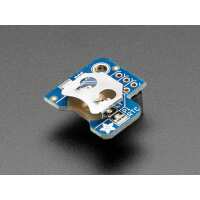
“Ordered this clock card from pi hut and it arrived next day. Once I found a battery it took only 10 minutes to install following instructions on adafriut website. It's only 2 weeks but the time is still correct to the second. The card is hosted on a pi 3 which is now an NTP server so everything can now keep correct time including my samsung tablet which never did.”
“This is the third PFC8523 that I have purchased to provide, however finding working instructions to get the PFC8523 working as the system clock took time. These are the instructions I used with Ubuntu Mate 16.04 on the a Raspberry Pi 2 B and 2 x Raspberry Pi 3 B
1. Power Off Raspberry Pi
2. Install PFC8523 on I/O Pins and install the battery
3. Power Up Raspberry Pi
4. After login run 'sudo raspi-config' and enable i2c interface
5. Edit /boot/config.txt and add the following to the end of the file below # Additional overlays and parameters are documented /boot/overlays/README
## Adafruit PiRTC PCF8523 RTC Enable
##
##
dtoverlay=i2c-rtc,pcf8523
6. Manually set the data/time on the Raspberry Pi, then use 'hwclock --systohc' to set the time on the pfc8523
7. Confirm the pfc8523 is working correctly by using 'hwclock --show'
8. In order to get the Raspberry Pi to read the RTC and keep the pfc8523 correctly synchronised follow the instructions below
9. In order to get the PI to read from the RTC you need to
Step 1: Edit the file "/etc/systemd/timesyncd.conf" with the following entries:
[Time]
NTP=0.europe.pool.ntp.org 1.europe.pool.ntp.org 2.europe.pool.ntp.org 3.europe.pool.ntp.org
FallbackNTP=0.europe.pool.ntp.org 1.europe.pool.ntp.org 2.europe.pool.ntp.org 3.europe.pool.ntp.org
Step 2: Update the file "/etc/rc.local" by adding the following lines:
[ ! -e /var/lib/systemd/clock -a "`systemctl is-active systemd-timesyncd | grep -i active`" ] && timedatectl set-ntp 1 > /dev/null 2>&1
Step 3: Create a file “/etc/systemd/system/hwclock-sync.service” with the following contents:
[Unit]
Description=Time Synchronisation from RTC Source
After=systemd-modules-load.service
RequiresMountsFor=/dev/rtc
Conflicts=shutdown.target
[Service]
Type=oneshot
ExecStart=/sbin/hwclock -s
TimeoutSec=0
[Install]
WantedBy=time-sync.target
Step 4: Now we need to shutdown and disable services for "ntp" and "fake-hwclock" and remove the corresponding packages that come by default with the OS by executing the following set of commands on the "root" shell prompt:
systemctl stop fake-hwclock
systemctl disable fake-hwclock prefer-timesyncd.service systemd-timedated.service
apt-get -y remove fake-hwclock
Step 5: To finally enable the automatic start-up of the RTC synchonrisation during bootup using the "systemd-timesyncd" service, execute the following commands on the shell prompt:
systemctl enable hwclock-sync systemd-timesyncd
systemctl start hwclock-sync systemd-timesyncd
Step 6 Install ntp
apt-get install ntp
edit /etc/ntp.conf and add
server 0.europe.pool.ntp.org
server 1.europe.pool.ntp.org
server 2.europe.pool.ntp.org
server 3.europe.pool.ntp.org
run the following commands to activate ntp
$ sudo systemctl enable ntp
$ sudo systemctl start ntp
After five minutes, run 'ntpq' and use the command peers to show the clocks ntp is synchronised with
ntpq> peers
ntpq> exit
Now verify correct operation by using the timedatectl command to obtain results similar to below
Local time: Sun 2017-10-15 12:13:55 BST
Universal time: Sun 2017-10-15 11:13:55 UTC
RTC time: Sun 2017-10-15 11:13:55
Time zone: Europe/London (BST, +0100)
Network time on: yes
NTP synchronized: yes
RTC in local TZ: no”